When I started looking into easy photo editing apps for retirees learning new technology, it was because my mom kept texting me blurry, dark photos from her garden and asking, “Why don’t these look like yours?” She wasn’t doing anything wrong. She just needed the right app and about ten minutes of patience. That conversation turned into a whole afternoon of testing apps together, and honestly, we both learned something. If you or someone you love is in that same spot, these are the apps that actually worked for us.
1. Snapseed: The One That Feels Intuitive Right Away
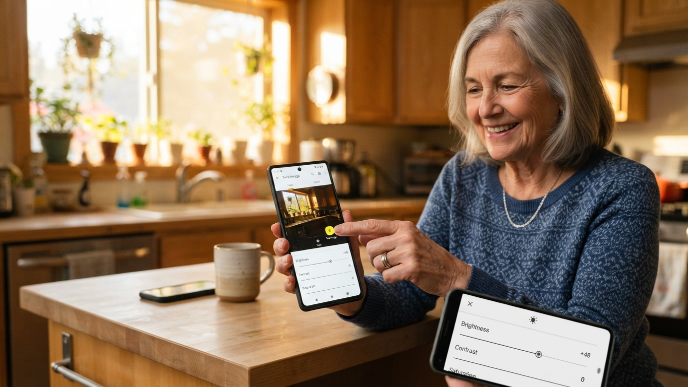
Google’s Snapseed is free, and it’s the first app I handed to my mom. The interface is clean, with big icons and no confusing menus buried three layers deep. You swipe left or right to adjust brightness, contrast, and saturation. That’s it. No guessing.
What really sold her was the “Tune Image” tool. One tap, one swipe, and her dim kitchen photo suddenly looked warm and inviting. Snapseed also has an undo button that goes back step by step, so there’s zero pressure about making a mistake. It runs on both iPhones and Android phones, which matters when half your family is on one and half is on the other.
2. Google Photos: You Probably Already Have It
Here’s the thing most retirees don’t realize: Google Photos isn’t just storage. It has a surprisingly good built-in editor. If you have an Android phone, it’s already sitting on your home screen. iPhone users can grab it free from the App Store.
The “Enhance” button does most of the heavy lifting with a single tap. It auto-adjusts lighting, color, and sharpness based on what the photo actually needs. My mom uses this one more than any other app now because she doesn’t have to open something separate. She just taps the photo, hits edit, and she’s done in under a minute. For retirees who feel overwhelmed by downloading new things, this is the perfect starting point.
3. Apple Photos: Built Right Into Every iPhone
If your retiree uses an iPhone or iPad, the default Photos app is more powerful than most people think. Apple designed it with simplicity as a priority, and it shows. The editing screen gives you sliders for exposure, brilliance, highlights, and shadows, all labeled in plain English.
One feature my dad loves is the “Auto” button at the top right of the editing screen. Tap it once and the phone makes smart adjustments. If you like the result, save it. If you don’t, tap it again to undo. No damage done. The crop and rotate tools are also dead simple, which comes in handy when someone accidentally takes a sideways photo at a birthday party. We’ve all been there.
4. Canva: When You Want to Add Text or Make Cards
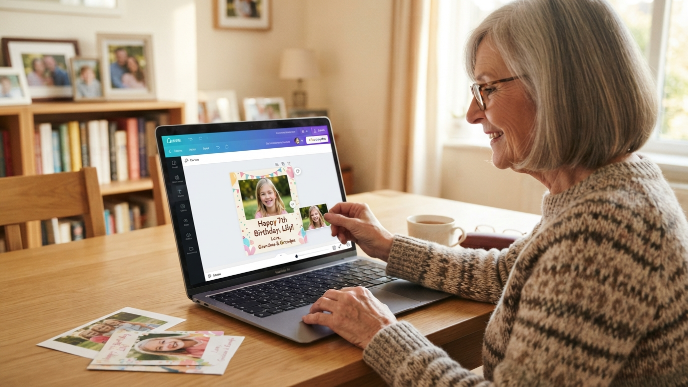
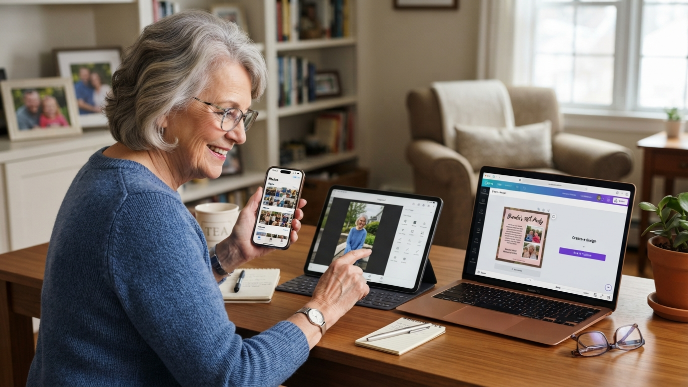
Canva goes a little beyond basic photo editing, but that’s exactly why retirees end up loving it. My mom started using it to make photo cards for birthdays and holiday greetings. She drags in a photo, picks a template, adds text, and suddenly she’s made something that looks professionally designed.
The free version covers everything a beginner needs. Canva’s drag-and-drop system means you never have to figure out layers or complicated toolbars. They also have a massive library of fonts and frames. Fair warning though: the app will try to upsell you on Canva Pro. Just ignore those prompts. The free tier is more than enough for casual use, and no one needs to spend money while they’re still learning the basics.
5. PhotoDirector: A Step Up Without the Overwhelm
CyberLink’s PhotoDirector is where I point people who’ve gotten comfortable with the basics and want a little more creative control. It has tools for removing unwanted objects from photos, which is genuinely useful when a stranger photobombs your vacation shot.
The app walks you through features with short tutorials the first time you use them. That hand-holding approach works really well for retirees who don’t want to watch a 20-minute YouTube video just to learn one function. It’s free with ads, and the ads are mildly annoying but not intrusive enough to ruin the experience. Available on both major platforms, it’s a solid next step once someone has outgrown the simpler options.
Why Easy Photo Editing Apps for Retirees Learning New Technology Actually Matter
This isn’t just about prettier photos. When a retiree picks up a new skill on their phone or tablet, it builds real confidence. I watched my mom go from being afraid to “break something” on her phone to texting me edited photos with the caption “look what I did!” That shift happened in about two weeks.
Technology confidence compounds. Once someone learns to edit a photo, they’re more willing to try video calls, online banking, or even social media. These easy photo editing apps for retirees learning new technology serve as a gateway. They’re low stakes, the results are immediately visible, and there’s genuine satisfaction in turning a mediocre snapshot into something you’d actually want to print and frame.
Tips for Getting Started Without Frustration
Starting with one app is the single best piece of advice I can give. Don’t download five at once. Pick one, play with it for a week, and get comfortable before even thinking about trying another.
Use photos you don’t care about for practice. Grab some random shots of your backyard or your coffee mug. That way, there’s no anxiety about ruining a precious family photo. Everything is reversible in these apps anyway, but the peace of mind matters when you’re building a new habit.
Ask Someone to Sit With You the First Time
This one changed everything for my parents. A five-minute walkthrough from someone patient made all the difference. If you’re the tech-savvy family member, resist the urge to take the phone and do it yourself. Instead, talk them through it while they tap the buttons. That muscle memory sticks way better than watching someone else do it.
How to Pick the Right App for Your Comfort Level
Not every app works for every person. If you want the absolute simplest experience with almost no learning curve, start with Google Photos or Apple Photos, whichever matches your phone. You already have them. Nothing to install.
If you want a little more creative freedom but still need things kept simple, Snapseed hits that sweet spot perfectly. And if you’re the kind of retiree who gets excited about projects, cards, and sharing polished images on Facebook, Canva will keep you busy for hours in the best way. The key is matching the app to what you actually want to do, not what some tech blog says is “the best.”
Common Mistakes Retirees Make (and How to Avoid Them)
Over-editing is the number one trap. When you first find those brightness and saturation sliders, it’s tempting to crank everything to the max. Suddenly your garden photo looks like it belongs on another planet. A good rule of thumb: adjust until you think it looks right, then dial it back about 20%. That usually lands in the sweet spot.
The second mistake is not saving a copy. Most of these apps let you save the edited version as a new file while keeping the original untouched. Always do this. My dad once over-sharpened the only digital copy of a family reunion photo and couldn’t undo it because he’d saved over the original. We laugh about it now, but he was genuinely upset for a full day.
Frequently Asked Questions
What is the easiest photo editing app for someone who has never edited photos?
Google Photos or Apple Photos, depending on your phone. They’re already installed, the layouts are clean, and the auto-enhance feature does 90% of the work with one tap. There’s no learning curve beyond opening the app and tapping “edit.” Start there before downloading anything new.
Are these easy photo editing apps for retirees learning new technology actually free?
Yes, every app on this list has a fully usable free version. Some like Canva and PhotoDirector offer paid upgrades, but the free features cover everything a beginner needs. You won’t hit a paywall while learning the basics, which is exactly what you want when starting out.
Can I use these apps on a tablet instead of a phone?
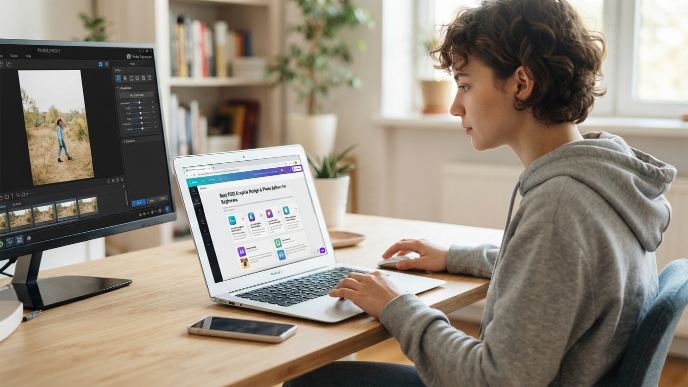
Absolutely. In fact, a tablet is often better because the bigger screen makes buttons and sliders easier to see and tap. Snapseed, Canva, Google Photos, and PhotoDirector all work beautifully on iPads and Android tablets. My mom actually prefers editing on her iPad for exactly this reason.
Will editing apps slow down my phone?
These apps are lightweight and designed to run on standard phones, even older models. Snapseed and Google Photos barely use any extra storage. Canva takes a bit more space because of its template library, but nothing that should cause problems. If your phone is running slow, closing other apps in the background usually fixes it.
How long does it take to learn basic photo editing?
Most retirees I’ve helped pick up the basics within one or two sessions, roughly 15 to 30 minutes total. Auto-enhance features work instantly, and manual adjustments like brightness and cropping take maybe five minutes to understand. Give yourself a week of casual practice and you’ll feel completely comfortable.
Conclusion
The best part about all of this is that it’s supposed to be fun. Editing photos isn’t homework, it’s a way to make your memories look as good as they felt. So which app are you going to try first?