Foolproof password protection methods for small business owners kept my company alive after a terrifying breach attempt two years ago. I remember staring at my screen at 2 AM, watching login attempts flood my admin panel from an IP address in a country I’d never visited. My stomach dropped. That night changed everything about how I handle security. If you run a small business and you’re still using your dog’s name followed by “123,” this one’s for you.
1. Use a Business Password Manager (Seriously, Just Do It)
A password manager is the single best investment I’ve made for my business, and it cost me less than a decent lunch. I use 1Password for my team, but Bitwarden and Dashlane work great too. These tools generate random, complex passwords for every account and store them in an encrypted vault.
Before I switched, my team kept passwords in a shared Google Doc. I cringe thinking about it now. A password manager removes the temptation to reuse passwords across platforms, and it lets you share login credentials with employees without ever revealing the actual password. When someone leaves the company, you revoke access in seconds. No awkward “please forget our Netflix password” conversations needed.

2. Turn On Multi-Factor Authentication Everywhere
Multi-factor authentication, or MFA, adds a second layer of proof that you are who you say you are. Even if someone steals your password, they still can’t get in without that second factor. Most platforms support it now, from Gmail to QuickBooks to Shopify.
I set up MFA using an authenticator app like Google Authenticator or Authy rather than SMS codes. Why? SIM swapping attacks are real, and they’re surprisingly easy for hackers to pull off. A dedicated authenticator app keeps that second code on your physical device, making it way harder to intercept. The whole setup takes about three minutes per account. Three minutes to close a massive security gap. That’s a no-brainer.
3. Create a Clear Password Policy for Your Team
Your passwords are only as strong as your least security-conscious employee. I learned this the hard way when a team member used “password1” for our project management tool. A written password policy sets the ground rules so nobody has to guess what “good enough” means.
My policy is simple. Every password must be at least 16 characters. No dictionary words. No reusing passwords across work accounts. Passwords get rotated every 90 days. I printed this on a single page and pinned it next to the coffee machine. You don’t need a 30-page security manual. You need clear, short rules that people actually follow. Having this policy also protects you legally if a breach ever does happen through employee negligence.
4. Stop Using Shared Logins Across Your Team
Sharing a single login for your social media accounts or business tools feels convenient until something goes wrong. When four people use the same credentials and one of them gets phished, you have no idea who was compromised or when. You lose all accountability.
Most SaaS platforms offer team plans with individual user seats for a small upcharge. Hootsuite, Canva, Slack, and nearly every tool a small business runs on supports this. I moved my team to individual logins about 18 months ago, and FYI, it also made it way easier to track who changed what in our systems. The small monthly cost is nothing compared to the chaos of a shared account breach.

5. Foolproof Password Protection Methods Include Passkeys
Passkeys are the newest player in the authentication world, and they’re genuinely exciting. Companies like Apple, Google, and Microsoft now support passkeys, which replace traditional passwords entirely. Instead of typing a password, your device uses biometric data or a device PIN to verify your identity through encrypted key pairs.
I started using passkeys for my Google Workspace account earlier this year. The experience feels almost too easy. You tap your fingerprint sensor or scan your face, and you’re in. No password to steal, no code to intercept. For small business owners looking for foolproof password protection methods that actually reduce friction instead of adding it, passkeys are the future arriving right now. Check if your critical platforms support them and start switching over.
6. Audit Your Existing Passwords Immediately
You probably have weak, reused, or compromised passwords sitting in your accounts right now. Most password managers include an audit feature that scans your vault and flags problems. 1Password calls it “Watchtower.” Bitwarden calls it “Vault Health Reports.” Both do the same thing.
When I first ran an audit, the results were humbling. I had 23 reused passwords and 7 that had appeared in known data breaches. Fixing them took about an hour, and I felt genuinely relieved afterward. You should also check HaveIBeenPwned.com, a free tool that tells you if your email address has appeared in any public data breaches. Run every company email through it. The results might surprise you, and not in a good way.
7. Train Your Team to Spot Phishing Attacks
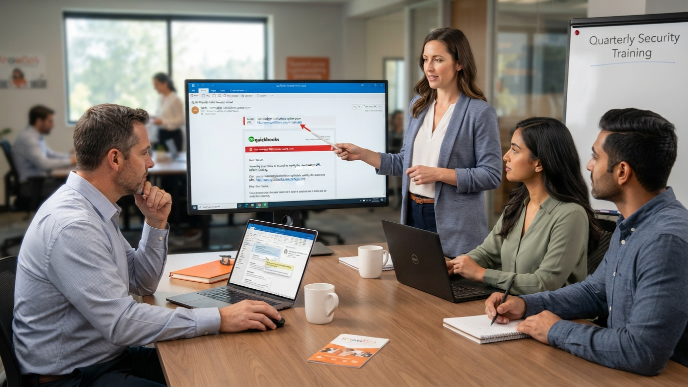
The strongest password on earth won’t help if someone willingly types it into a fake login page. Phishing remains the number one way hackers steal credentials from small businesses, because it works. The emails look incredibly real now. I’ve seen fake invoices from “QuickBooks” that nearly fooled me, and I was actively looking for red flags.
I run a quick 15-minute training session with my team every quarter. We look at real phishing examples, practice hovering over links before clicking, and I remind everyone that no legitimate service will ever ask for your password via email. Free resources from KnowBe4 and Google’s Phishing Quiz make this easy. Your team doesn’t need to become cybersecurity experts. They just need enough awareness to pause before clicking.
8. Secure Your Wi-Fi and Router Passwords
Your office Wi-Fi password is a gateway to your entire network, and most small business owners never change the default router credentials. If your router still uses “admin/admin” as its login, anyone who connects to your network can access your router settings, redirect traffic, or monitor activity.
Change your router’s admin password to something long and random. Set up a separate guest network for visitors and personal devices so they never touch your business network. I also switched my router’s encryption to WPA3, which is the current standard. If your router doesn’t support WPA3, it might be time for an upgrade. A solid business router from TP-Link or Ubiquiti costs under $200 and handles security far better than the one your internet provider gave you for free.
9. Back Up Your Password Vault and Recovery Keys
What happens if you lose access to your password manager? If you can’t answer that question, you have a problem waiting to happen. Every password manager provides emergency recovery options, and you need to set them up before you need them.
I printed my 1Password emergency kit, which contains my secret key and master password hint, and stored it in a fireproof safe at home. I also designated a trusted family member as an emergency contact within the app. Some business owners store recovery keys in a safety deposit box. The method matters less than having one at all. Losing access to a vault containing 200+ passwords would effectively shut my business down, and I never want to be in that position.
10. Review Access Permissions Quarterly
Passwords protect the door, but permissions determine what people can reach once they’re inside. I review every team member’s access permissions once per quarter. Does your intern really need admin access to your payment processor? Probably not.
The principle of least privilege means giving each person only the access they need to do their job, nothing more. When someone changes roles or leaves, update their permissions immediately. I keep a simple spreadsheet tracking who has access to what, and I review it on the first Monday of every quarter. It takes 20 minutes and has already caught two cases where former contractors still had active logins to our systems. IMO, this is one of the most overlooked aspects of business security.

Frequently Asked Questions
What makes a password truly strong for business use?
A strong business password is at least 16 characters long and includes a mix of uppercase letters, lowercase letters, numbers, and symbols. Avoid real words, names, or dates. Better yet, use a password manager to generate completely random strings. A passphrase like “correct-horse-battery-staple” works too, but make it unique to each account.
How often should small businesses change their passwords?
The traditional advice was every 60 to 90 days, but current NIST guidelines say you should only force rotation when there’s evidence of compromise. Frequent forced changes actually lead to weaker passwords because people choose simpler ones they can remember. Focus on strong, unique passwords combined with MFA instead of constant rotation.
Are free password managers safe enough for a small business?
Bitwarden’s free tier is legitimately good and uses strong end-to-end encryption. For a solo operation or very small team, it works fine. Once you need shared vaults, team management, or admin controls, the paid plans from Bitwarden, 1Password, or Dashlane are worth the upgrade. Expect to pay around $4 to $8 per user monthly.
What are foolproof password protection methods that cost nothing?
Enabling MFA on every account is free and dramatically reduces breach risk. Writing a password policy costs nothing but time. Training your team to recognize phishing emails can use free resources from Google and KnowBe4. Checking HaveIBeenPwned.com is free. You can significantly improve your security posture without spending a single dollar on software.
What should I do immediately after a password breach?
Change the compromised password right away, then change it on any other account where you reused it. Enable MFA if it wasn’t already active. Check your account activity logs for unauthorized actions. Notify affected clients if their data may have been exposed. Document everything for your records and consider consulting a cybersecurity professional to assess the full damage.
Conclusion
Password security isn’t glamorous, but it’s the wall standing between your business and someone who wants to take what you’ve built. Start with a password manager, add MFA, and train your team. You don’t need to do everything on this list today, but pick two or three and knock them out this week. What’s the first thing you’re going to lock down?